How to test your microphone
- Click Test my microphone and allow the microphone when your browser asks.
- Speak or clap. The meter shows the level in decibels, the white line the recent peak, and the bars below the pitch of what the microphone hears.
- Read the status above the meter: it tells you whether the microphone works, is too quiet, clips, or sends silence.
- Click Record 5 s and play it back to hear yourself as others will.
- Pick another microphone from the list to compare them.
What the results mean
| Status | What it means | What to do |
|---|---|---|
| Your microphone works | The level rose when you spoke | Nothing |
| It’s quiet | You were heard, but the loudest level stayed under −40 dB | Move closer or raise the input volume |
| Too loud: the sound clips | Peaks reach 0 dB and distort | Lower the input volume or move back |
| We can’t hear anything | The microphone opened but sends silence | See the fixes below |
Microphone details shows what your browser reports: the microphone’s name, its sample rate (usually 48,000 Hz), mono or stereo, and whether echo cancellation, noise suppression and automatic volume are on. Video-call sites usually turn those on, so the test does too: you hear yourself the way a call would.
Microphone not working? Quick fixes
- Blocked in the browser. Click the icon to the left of the address bar and allow the microphone. In Chrome you can also open Settings › Privacy and security › Site settings › Microphone and remove the site from the blocked list.
- Blocked by the computer. On Windows, open Settings › Privacy & security › Microphone and allow microphone access for apps and for your browser. On a Mac, open System Settings › Privacy & Security › Microphone and turn your browser on, then restart it.
- The wrong microphone. Choose the right one in the list on this page. Your browser and computer each have a default, and a webcam or a monitor can count as a microphone.
- Muted or turned down. Check the mute switch on a headset or a mute key on the keyboard, and the input volume in your computer’s sound settings.
- In use by another app. Close video-call or recording apps that may hold the microphone, then try again.
- School or work computer. An administrator may block the microphone for some sites. Ask them, or use a computer you manage.
Test, then record
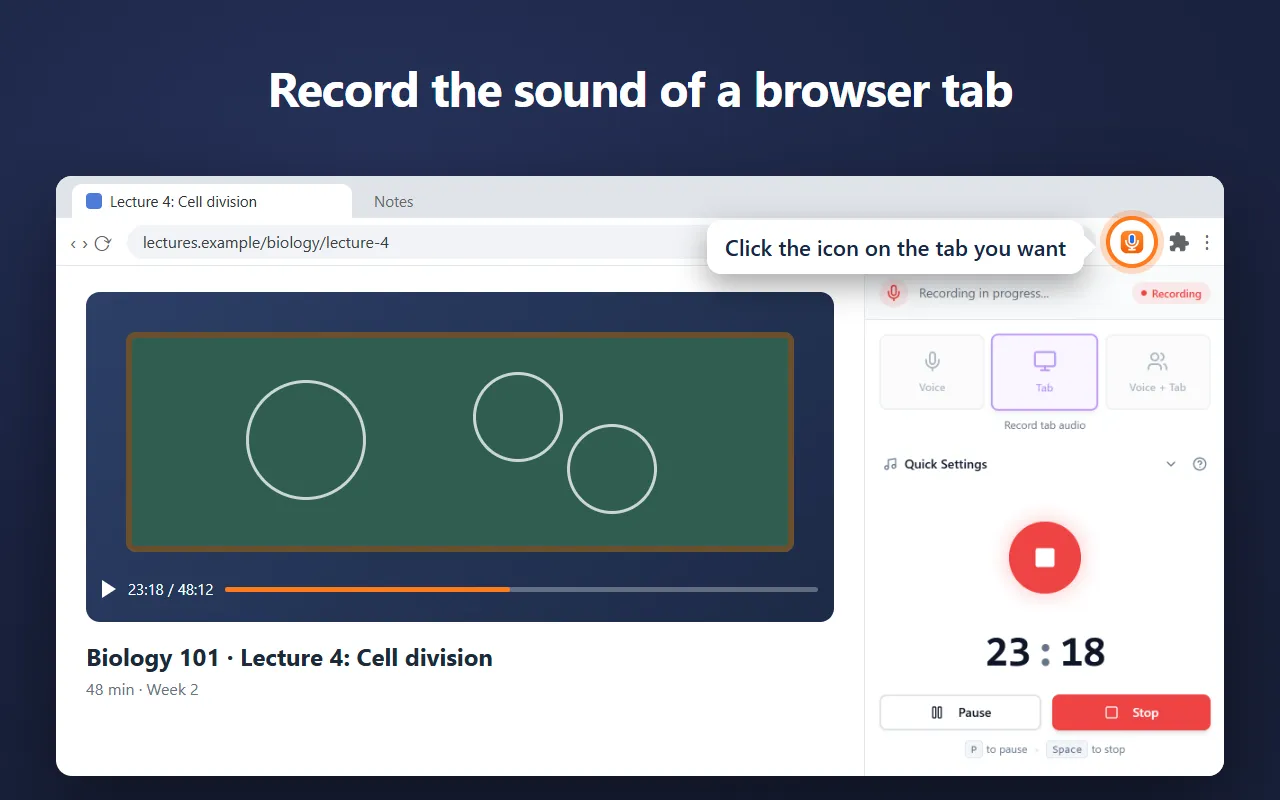
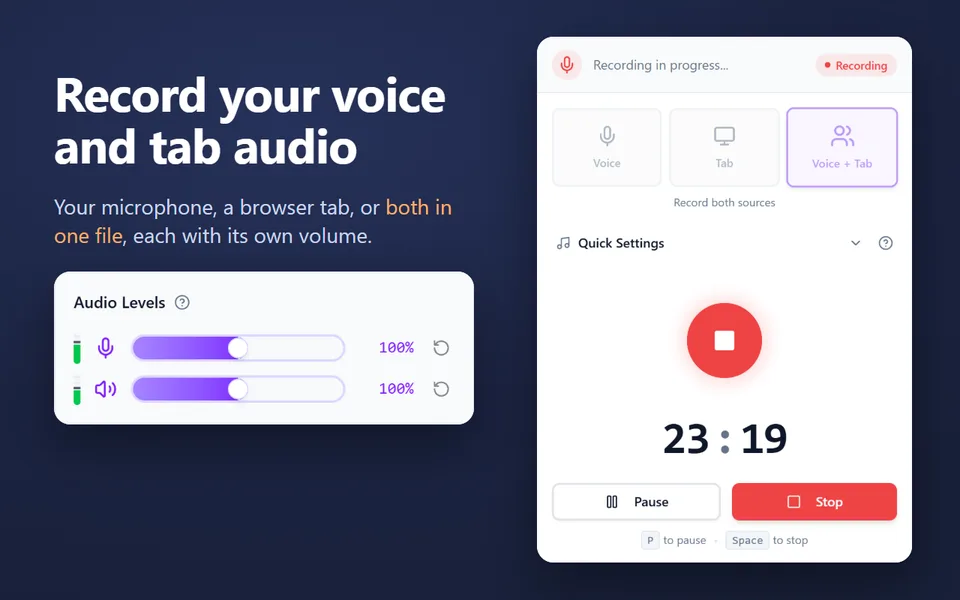
Once your microphone sounds right, record with it on the online voice recorder, or install the Voice Recorder extension to record in Chrome’s side panel while you work in other tabs.