PowerPoint for Windows: record in the slide
- Go to the slide and choose Insert › Audio › Record Audio.
- Type a name, click Record and speak. Click Stop, then Play to check.
- Click OK to keep it. Drag the audio icon where you want it.
To narrate the whole presentation with timings, use PowerPoint’s slide show recording.
PowerPoint for Mac and the web: record here, then insert
- Record each slide’s narration with the recorder above, keeping MP3. Crop the start and end, then Download.
- In PowerPoint, select the slide and choose Insert › Audio:
- Mac: Audio from File, then choose your MP3.
- Web: Audio from your computer (MP3, WAV or M4A, up to 16 MB).
- Select the audio icon and, on the Playback or Audio tab, set Start to Automatically if you want it to play with the slide.
Record with your slides in view
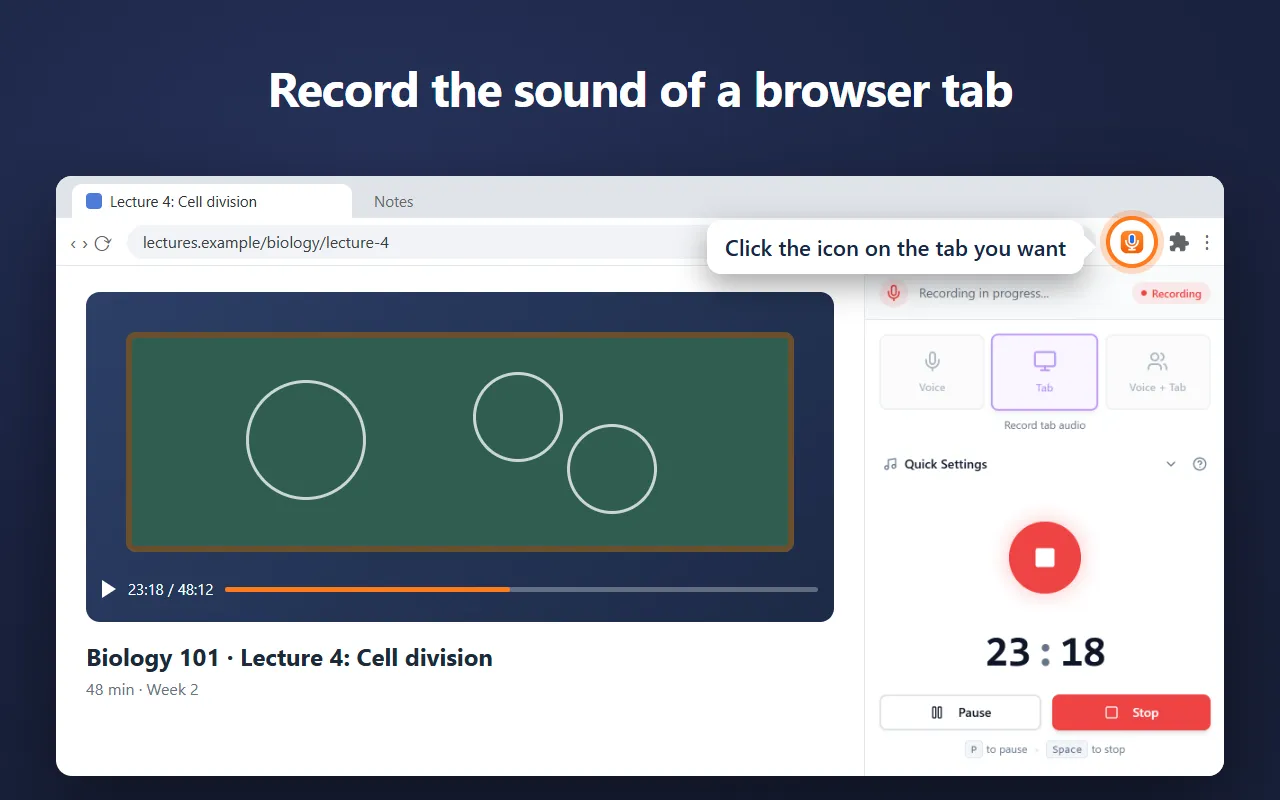
The Voice Recorder extension for Chrome opens in the side panel next to PowerPoint for the web, so you can read each slide while you record it. Each take is saved in a library where you can crop and download it.
Tips for clear narration
- Use a headset or USB microphone if you have one, and check it with the mic test.
- Keep Noise reduction on, and record in a quiet room.
- Write a short script per slide and read it once before recording.
Using Google Slides instead? See how to add audio to Google Slides.
Updated October 16, 2026