How to record your computer’s sound
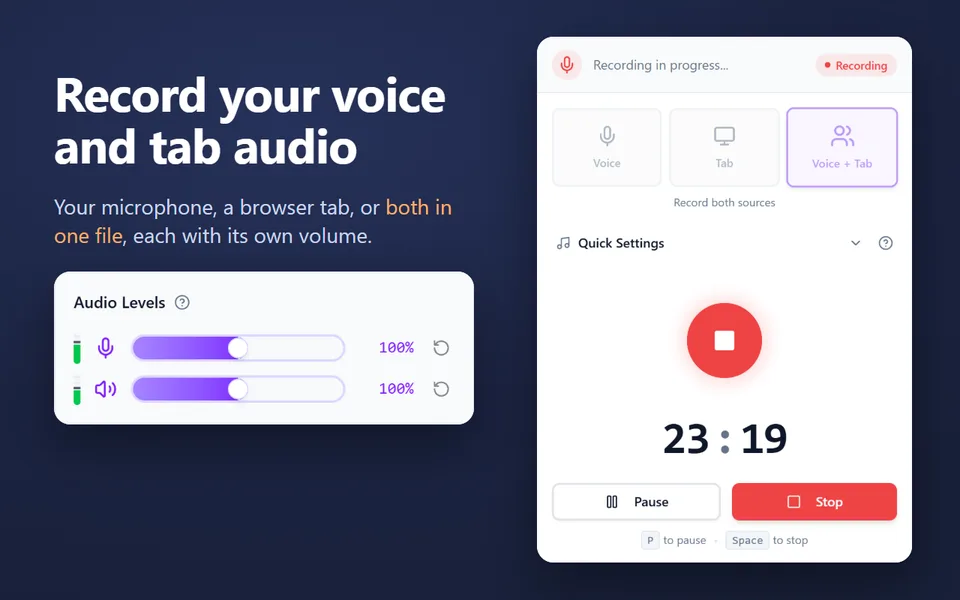
- Optionally turn on Also record my microphone to add your voice, for example over a meeting or a video.
- Click Choose what to record. Chrome opens its sharing window.
- Choose what to share:
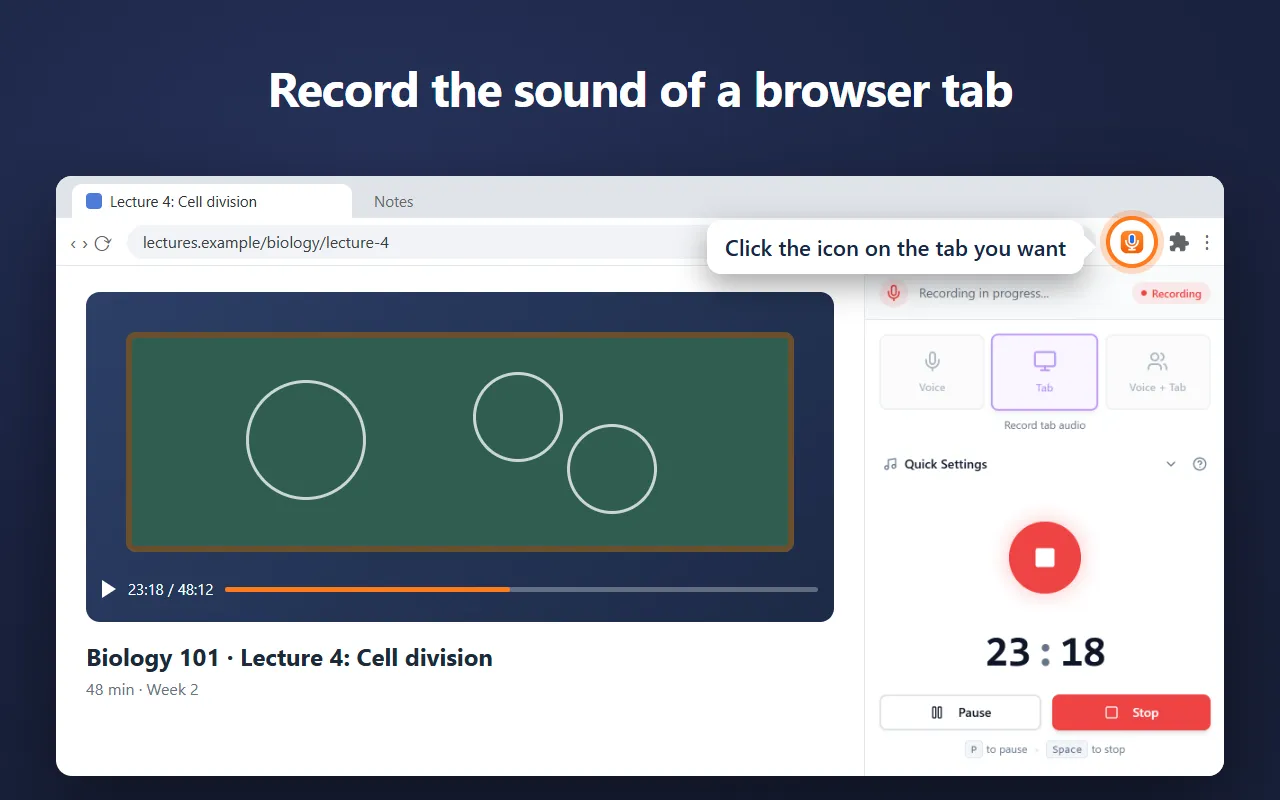
- Chrome Tab, and turn on Also share tab audio. This records only that tab.
- Entire screen, and turn on Also share system audio. This records everything your computer plays (Windows, ChromeOS, and macOS 14.2 or later).
- Click Share. Recording starts, and the meter shows the sound coming in.
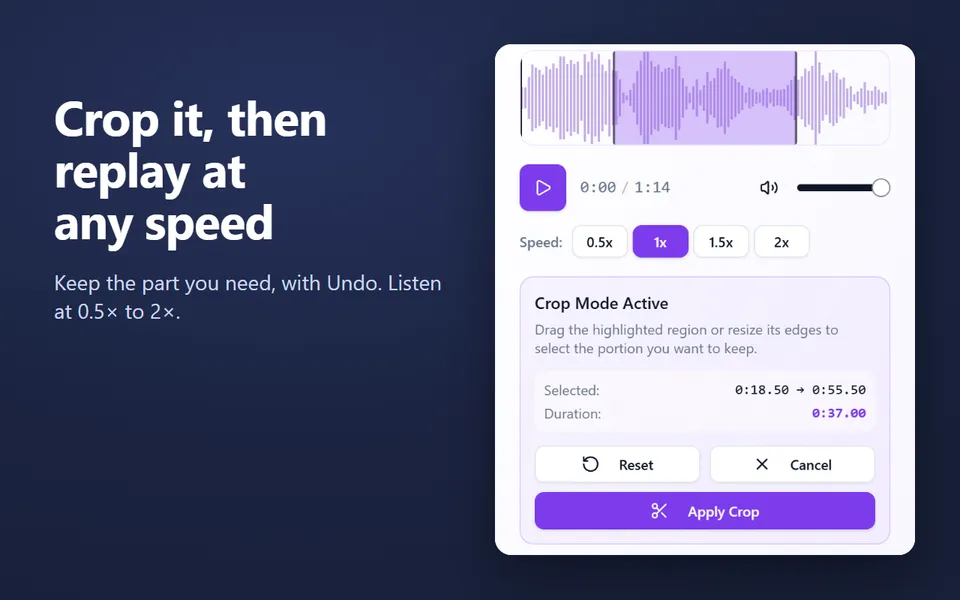
- Click Stop and save, or Stop sharing in Chrome’s bar. Play it, crop it if you like, and download the MP3 or WAV.
Computer audio is recorded in stereo at 48 kHz. Only the sound is kept: the picture Chrome shares is stopped at once.
Tab audio or system audio?
| A tab’s sound | System sound | |
|---|---|---|
| What you get | One Chrome tab only | Everything your computer plays: apps, notifications, other browsers |
| Works on | Windows, Mac, ChromeOS, Linux | Windows, ChromeOS, macOS 14.2 or later |
| Good for | A video, a web meeting, a course player | Desktop apps and players outside Chrome |
If you choose Entire screen, mute notifications first: they are part of the system sound.
If the recording is silent or won’t start
- No sound was shared. The sound switch in Chrome’s window was off. Start again and turn it on.
- You shared a window. A single app window may be shared without its sound. Share a tab or the entire screen instead.
- Nothing was playing, or the tab was muted. The meter stays still while there is nothing to record.
- The site blocks capture. Some players protect their content, and their sound is recorded as silence.
- Firefox or Safari. They can’t share sound with a website. Use Chrome on a computer.
Record the sound of a meeting or class
Open the meeting or class in a Chrome tab, turn on Also record my microphone so your own voice is included, and share that tab with its audio. Tell everyone you are recording. For long sessions, the Voice Recorder extension is the steadier choice: it records the tab from Chrome’s side panel, saves as it goes, and recovers the recording if the browser closes.