1. In your browser (fastest)
The recorder above works in Chrome, Edge and Firefox on any Windows PC.
- Click Start recording and allow the microphone.
- Speak, then click Stop and save.
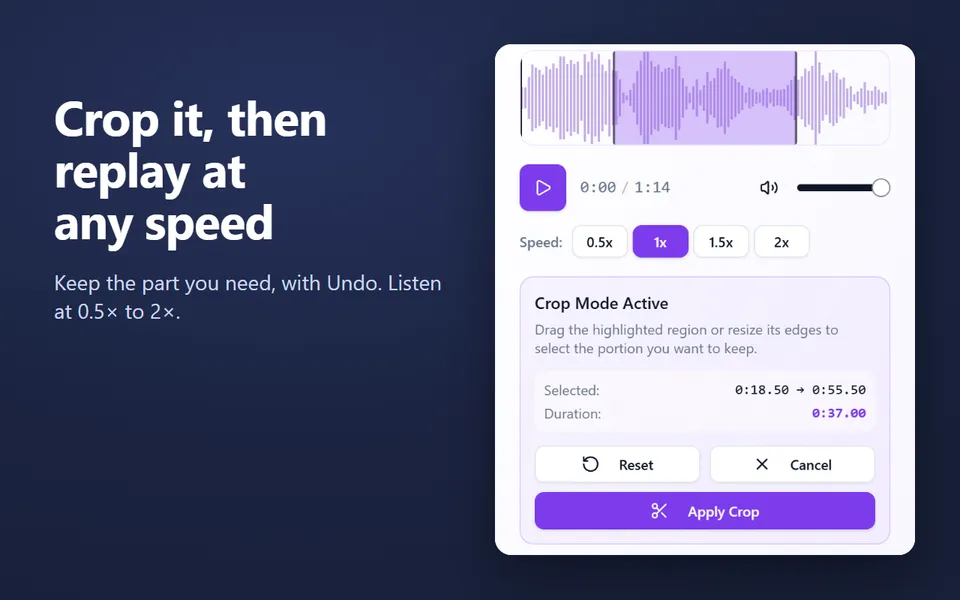
- Crop it if you like and click Download for an MP3 or WAV.
2. Sound Recorder (Windows 11) or Voice Recorder (Windows 10)
- Open Start, type Sound Recorder (on Windows 10, Voice Recorder) and open it.
- Choose the microphone at the bottom left if you have more than one.
- Click the red button to record, and again to stop.
- Find the files in Documents › Sound recordings.
3. Record your PC’s sound in Chrome
To record a video’s sound, a web meeting or anything your PC plays:
- Open Record computer audio in Chrome.
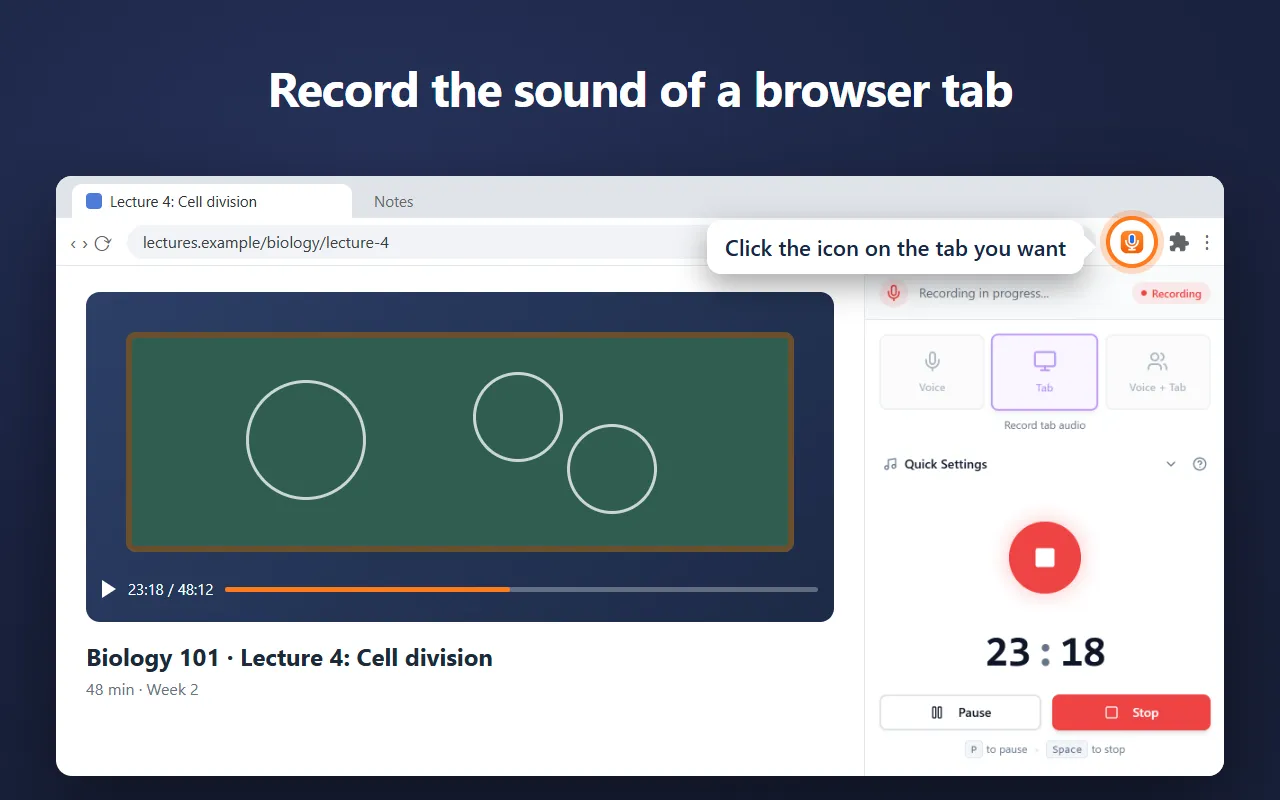
- Click Choose what to record, pick Entire screen and turn on Also share system audio, or pick a tab with Also share tab audio.
- Stop when you’re done and download the file.
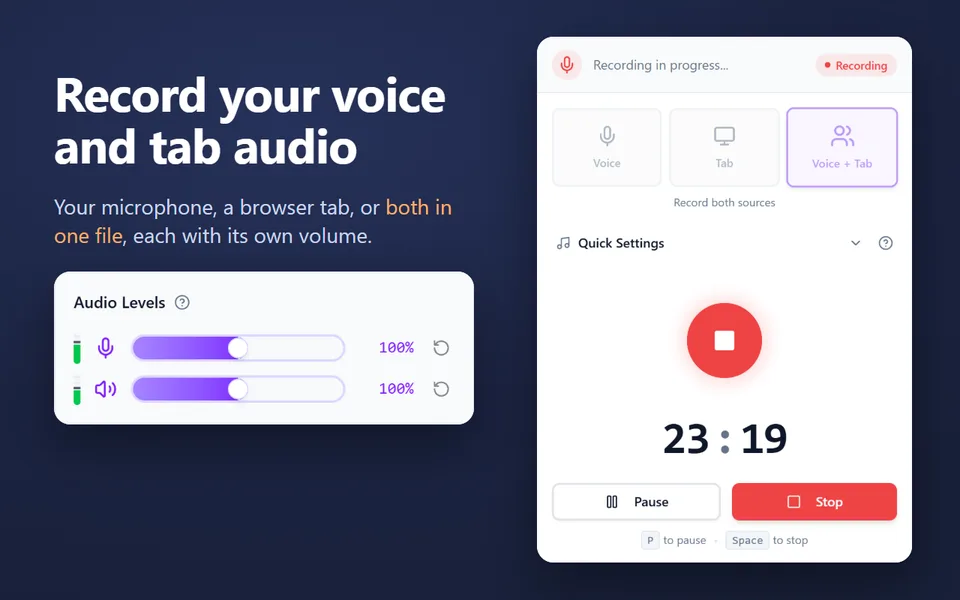
The Voice Recorder extension does this from Chrome’s side panel: its System audio switch records the PC’s sound, and Voice + Tab mixes your microphone with a tab.
Which one to pick
| Way | Records | File | Best for |
|---|---|---|---|
| Browser (this page) | Microphone | MP3 or WAV | A quick recording, any PC |
| Sound Recorder | Microphone | M4A by default | A built-in app with no browser |
| Record computer audio | Your PC’s sound, a tab, plus your microphone | MP3 or WAV | Videos, meetings, any sound the PC plays |
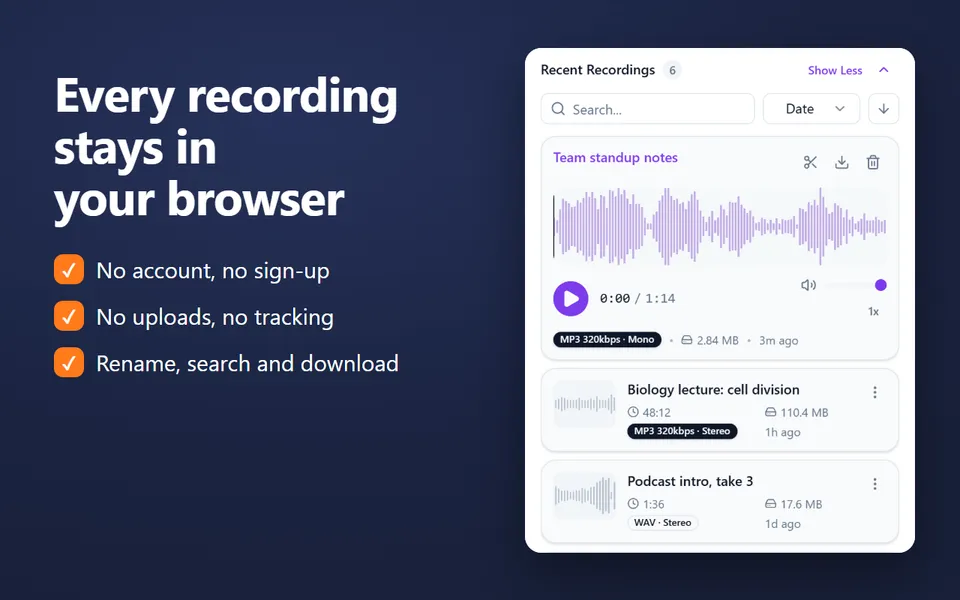
| Voice Recorder extension | Microphone, a tab, your PC’s sound | MP3, WAV or WebM | Recording while you work, with a library |
If nothing is recorded
Open Settings › Privacy & security › Microphone and allow access for apps and desktop apps. Check Settings › System › Sound › Input, and test with the mic test. More fixes: microphone not working.
Updated October 16, 2026