1. In your browser (any Mac)
The recorder above works in Safari, Chrome and Firefox.
- Click Start recording and allow the microphone.
- Speak, then click Stop and save.
- Crop the start or end if you like, then Download an MP3 or WAV.
2. QuickTime Player
QuickTime comes with every Mac.
- Open QuickTime Player (in Applications, or search with Spotlight).
- Choose File › New Audio Recording.
- Click the arrow next to the record button to pick the microphone and quality.
- Click the record button, speak, and click it again to stop.
- Choose File › Save. The recording is saved as an M4A file.
3. Voice Memos
The Voice Memos app is on Macs too, and syncs with your iPhone through iCloud.
- Open Voice Memos and click the red record button.
- Click Done to stop. The memo appears in the list.
- To get a file, drag the memo to the desktop or use Share. It’s an M4A file; convert it with M4A to MP3 if you need an MP3.
4. The Voice Recorder extension for Chrome
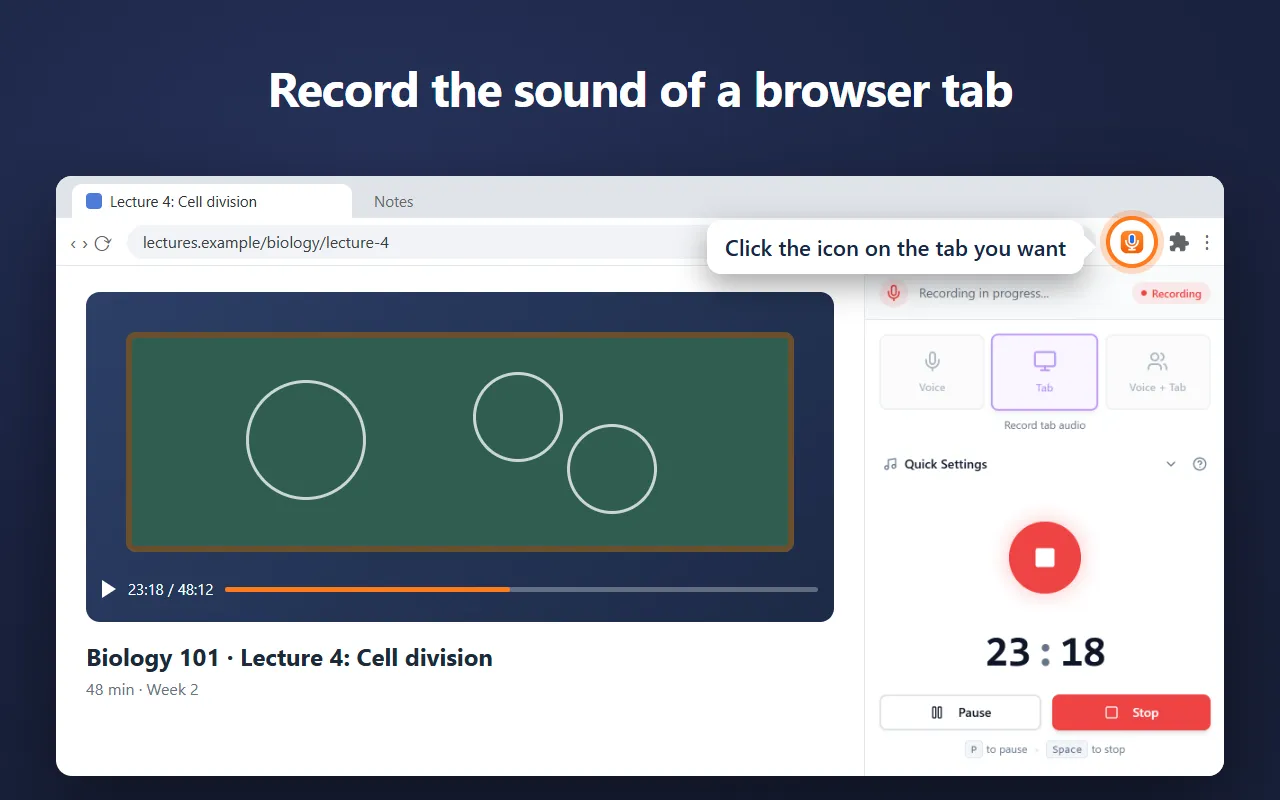
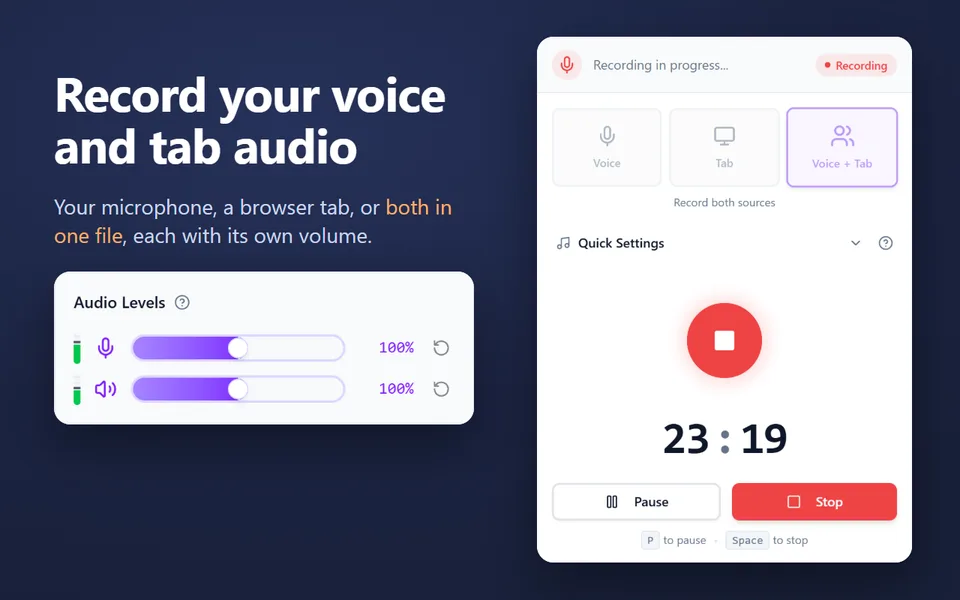
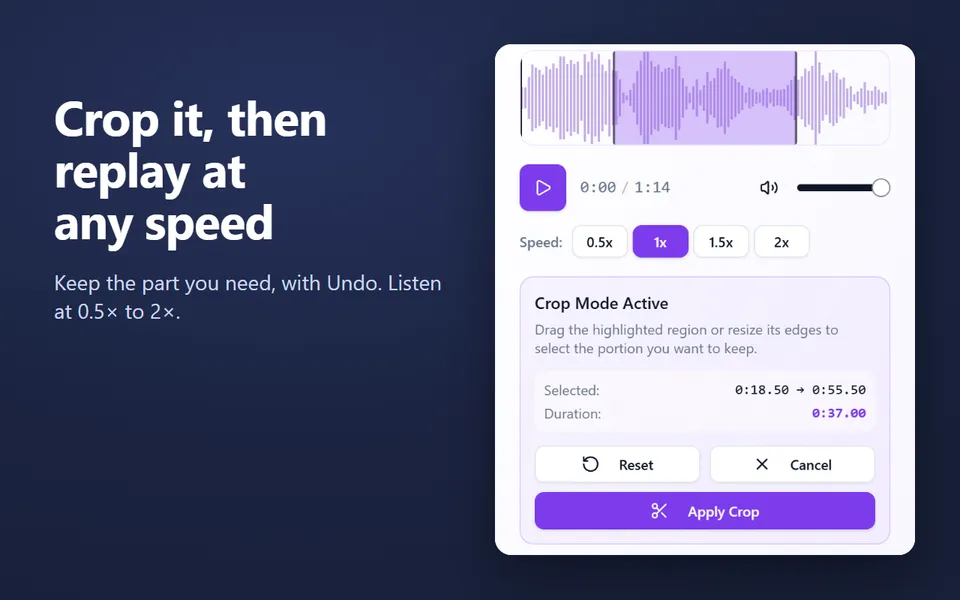
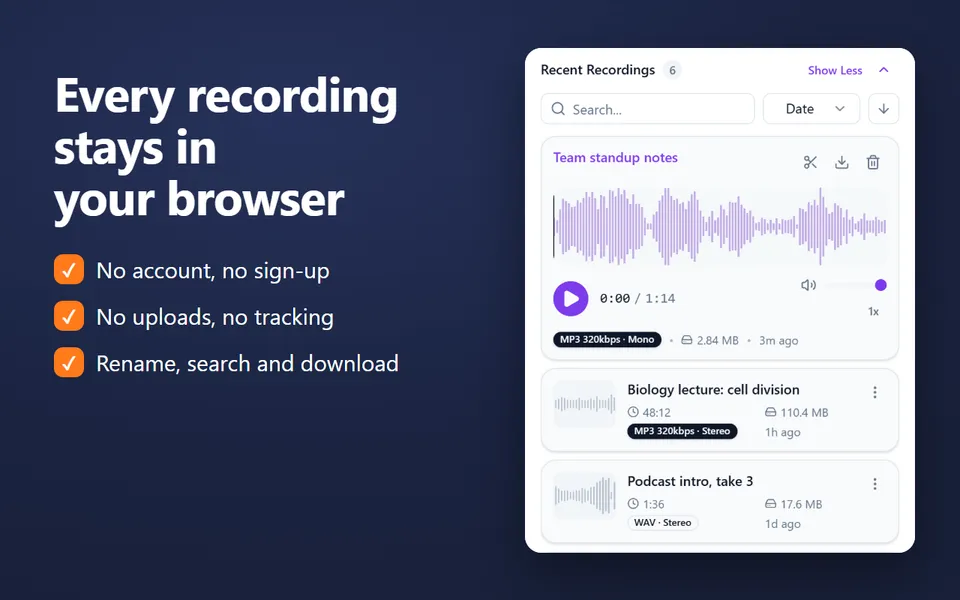
If you use Chrome, the extension records in Chrome’s side panel while you work in other tabs. It records your microphone, the sound of a tab, or both, and on macOS 14.2 or later the Mac’s own sound. It keeps your recordings in a library you can rename, crop and download.
Which one to pick
| Way | Records | File | Best for |
|---|---|---|---|
| Browser (this page) | Microphone | MP3 or WAV | A quick recording without apps |
| QuickTime Player | Microphone | M4A | A simple recording saved where you choose |
| Voice Memos | Microphone | M4A | Memos that sync with your iPhone |
| Voice Recorder extension | Microphone, a tab, the Mac’s sound (macOS 14.2+) | MP3, WAV or WebM | Recording while you work in Chrome |
If the Mac records silence
Open System Settings › Privacy & Security › Microphone and turn on the app or browser you’re using, then quit and reopen it. Check the input in System Settings › Sound › Input, and test with the mic test.
Updated October 16, 2026