How to record your voice online
- Click Start recording and allow the microphone when your browser asks.
- Speak. The waveform and the level meter show that sound is coming in. Use Pause for breaks.
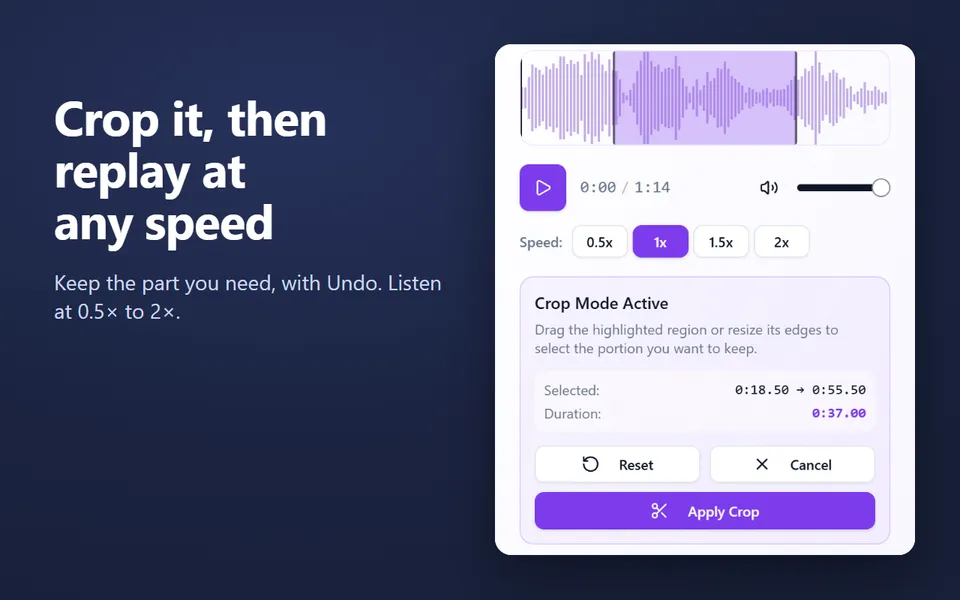
- Click Stop and save. The recording opens right in the recorder: play it, and drag across the waveform to crop it.
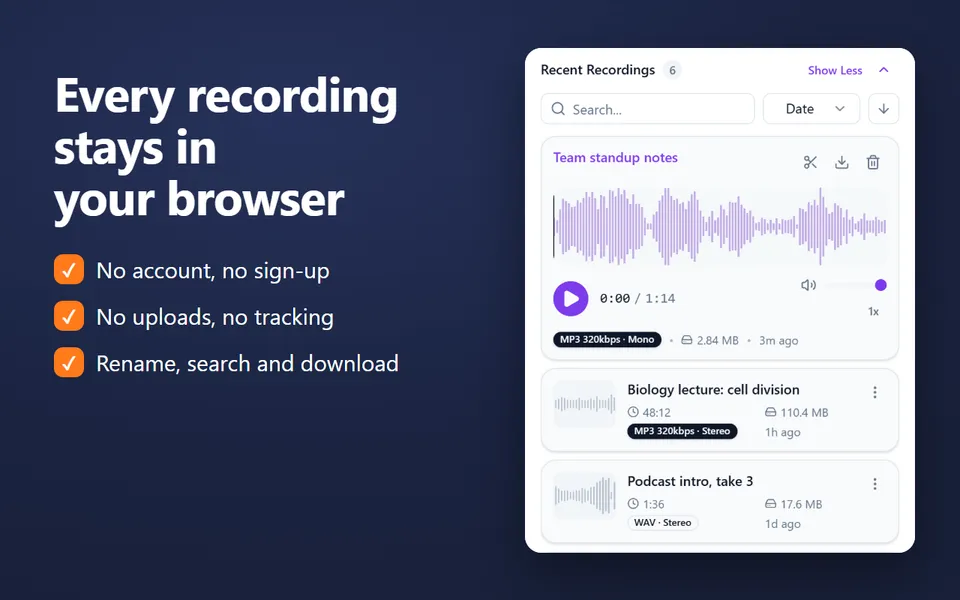
- Give it a name if you like, then click Download to save the MP3 or WAV file. It also stays under Your recordings.
If you have several microphones (a headset, a USB microphone, a webcam), pick one from the list at the top right of the recorder. To check one first, use the mic test.
What you can record
- Voice memos and notes you want to keep as a file rather than in a phone app.
- Lectures and classes: see the lecture recorder page for tips.
- Narration for slides: record it here, then add the MP3 to Google Slides or PowerPoint.
- Interviews, podcast drafts and voice-overs recorded with one microphone.
- Pronunciation and speaking practice: record, listen back, try again.
- Singing or an instrument: turn Noise reduction off so the browser doesn’t treat music as noise.
MP3 or WAV?
| MP3 | WAV | |
|---|---|---|
| Size per minute (mono) | about 1 MB at 128 kbps, 1.4 MB at 192 kbps, 2.4 MB at 320 kbps | about 5.8 MB |
| Quality | Very good for voice from 128 kbps | Lossless |
| Best for | Sharing, email, Google Drive, Slides | Editing in an audio editor |
Every recording is made at 48 kHz. A voice recording is mono, which is all a single microphone needs.
Private by design
The recorder is built on your browser’s own audio features. The sound goes from your microphone to the page and is turned into an MP3 or WAV file on your device. There is no upload, no account and no cloud copy. You decide where the file goes when you download it.
Noise reduction uses your browser’s echo cancellation, noise suppression and automatic volume. It is on by default and makes speech clearer in a noisy room. Turn it off for music, or when you want the raw sound of a good microphone.
Works on Chromebooks, Windows, Mac and Linux
The recorder works on any computer with a current Chrome or Firefox, Chromebooks included. It uses only standard browser features, which Edge and Safari support too. If the microphone is blocked, click the icon to the left of the address bar and allow it for this site. For Chromebook-specific steps, see how to record audio on a Chromebook.