How to record a lecture in the room
- Sit near the front, close to the lecturer or a loudspeaker. Distance matters more than the microphone.
- Plug your laptop in and set it not to sleep with the lid open.
- Choose MP3 at 128 kbps: an hour takes about 58 MB.
- Keep Noise reduction on. It lowers fan and room noise and evens out the volume.
- Click Start recording. Use Pause for breaks so you don’t record them.
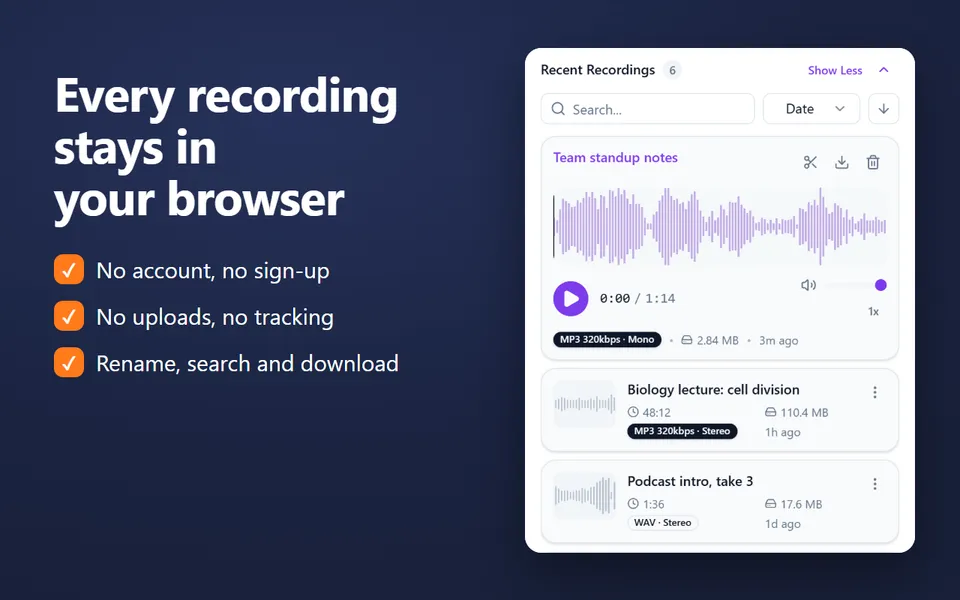
- After class, click Stop and save, name the recording after the course and date, and Download it.
Keep the tab open while you record: the recording is saved in your browser when you stop, not before.
How to record an online class
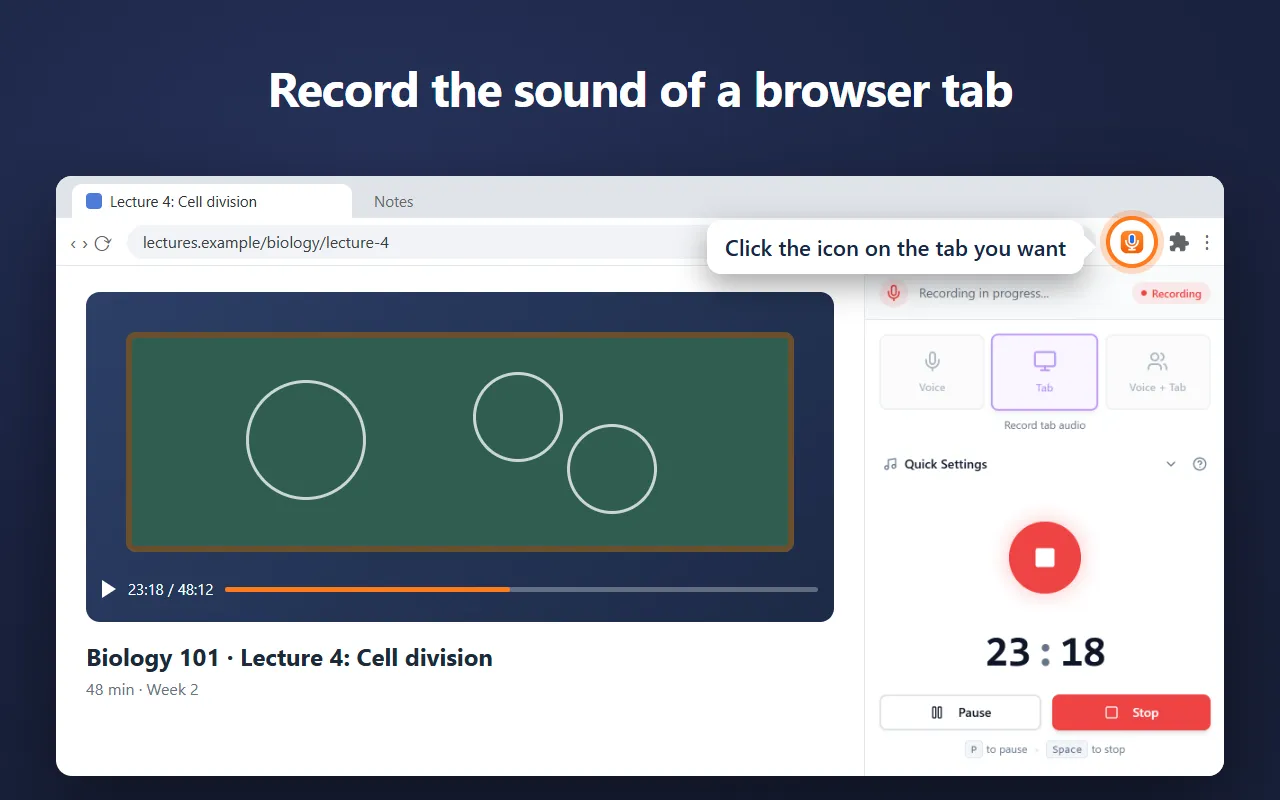
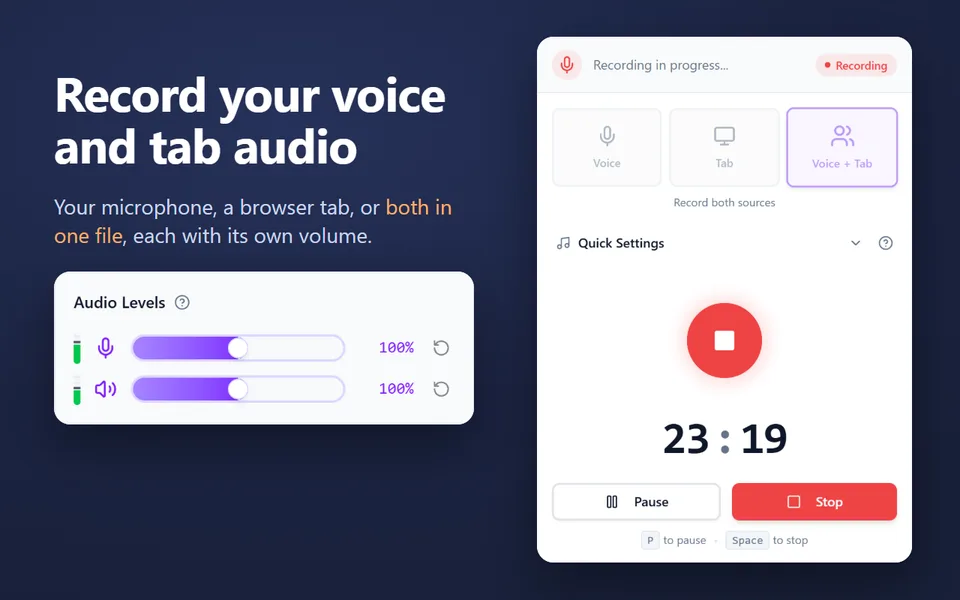
If the class is in a browser tab (Google Meet, Zoom in the browser, a course video), open Record computer audio, share that tab with Also share tab audio on, and turn on Also record my microphone if you will speak. Classes in a desktop app can be recorded with Entire screen and Also share system audio on Windows, ChromeOS and macOS 14.2 or later.
Tips for clear lecture recordings
- Test your microphone with the mic test before class: the level should move when someone speaks across the room.
- A small clip-on or USB microphone near the speaker is far better than a laptop microphone at the back.
- Don’t type on the laptop that is recording: keyboard noise is loud on a built-in microphone.
- Say the date and topic at the start, so you can find the right file later.
Be fair to your lecturer and classmates
Ask before you record, follow your school’s rules, and keep recordings for your own study unless everyone recorded has agreed to more.
Updated October 15, 2026