How to Record Google Meet Audio

Google Meet’s own recording is limited to some paid and school plans. In Chrome you can record the meeting’s sound with any account, as an MP3 on your computer.

Ready

0:00

In the window that opens, pick a tab or your entire screen and turn on “Also share tab audio” or “Also share system audio”.

Recorded in your browser. Nothing is uploaded.

Record a Meet call’s audio in Chrome

  1. Join the meeting in a Chrome tab.
  2. In another tab, open this page and turn on Also record my microphone if you want your own voice in the file.
  3. Click Choose what to record, pick the Google Meet tab, turn on Also share tab audio and click Share.
  4. Talk as usual. Click Stop and save when the meeting ends, then crop and Download the MP3.

Tell everyone in the meeting that you’re recording before you start.

Record from the side panel instead

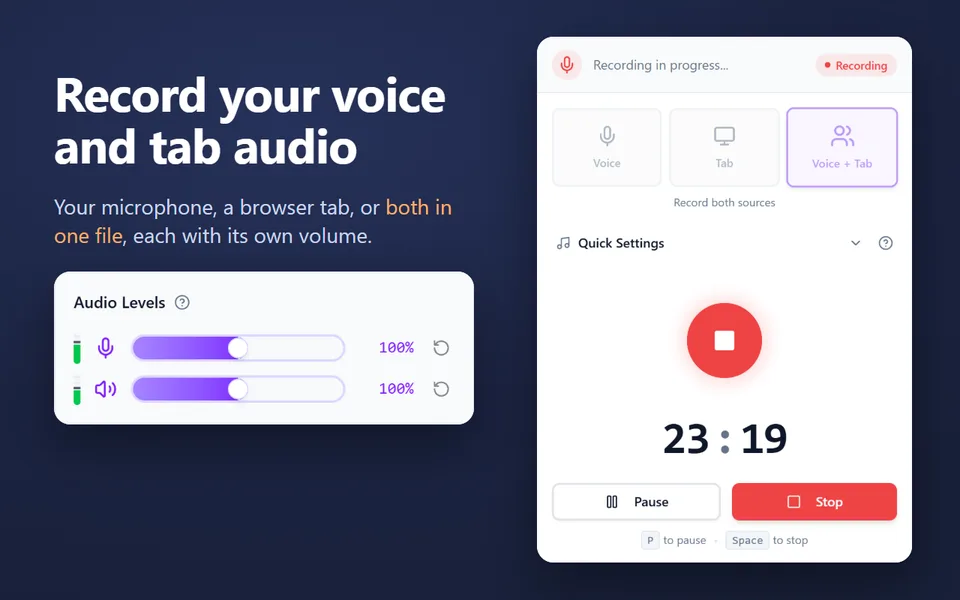
The Voice Recorder extension does this without the share window: open the Meet tab, click the extension’s icon, choose Voice + Tab and press record. It mixes your microphone with the meeting, each with its own volume, saves as it goes, and keeps the recording in a library.

Google Meet’s own recording

If your plan includes it, the host (or a co-host) can start recording from the meeting’s tools. The video and audio are saved to the organizer’s Google Drive. It’s available with Google Workspace Essentials, Business Standard and Plus, Enterprise editions, Education Plus for staff, the Teaching and Learning Upgrade, Workspace Individual, and Google One with 2 TB or more, if the administrator allows it.

Lectures and classes in Meet

Students can use the same steps to keep a class’s audio for review, with the teacher’s permission. See the lecture recorder for tips.

Updated October 16, 2026
Voice Recorder for Chrome: record while you work in other tabs

Our free Chrome extension records in Chrome’s side panel, so it keeps going while you work in other tabs. It saves as it records, so a crash or a closed browser loses only the last few seconds.

  • Records your microphone, the sound of a browser tab, or both in one file
  • Records your computer’s sound on Windows and macOS 14.2 or later
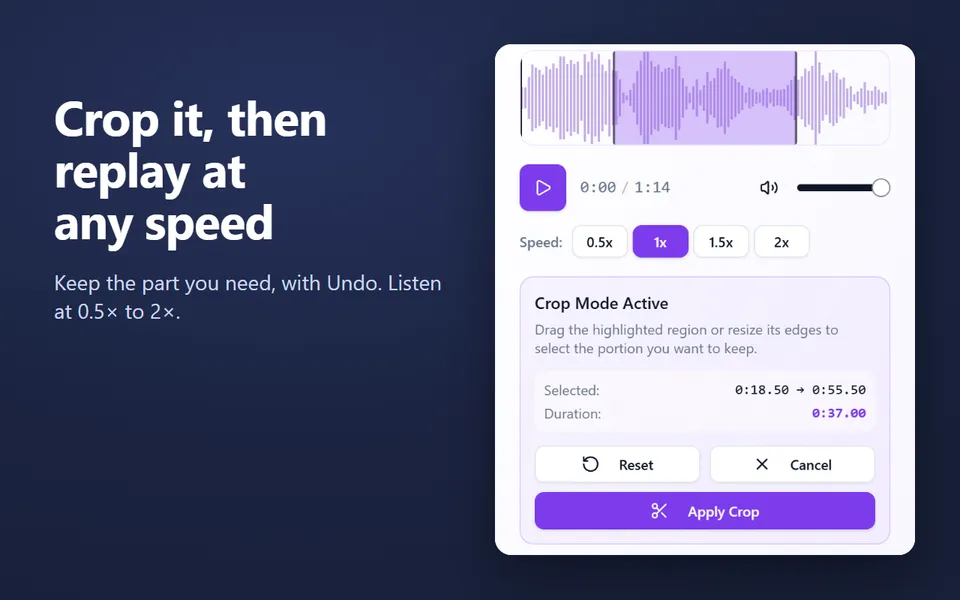
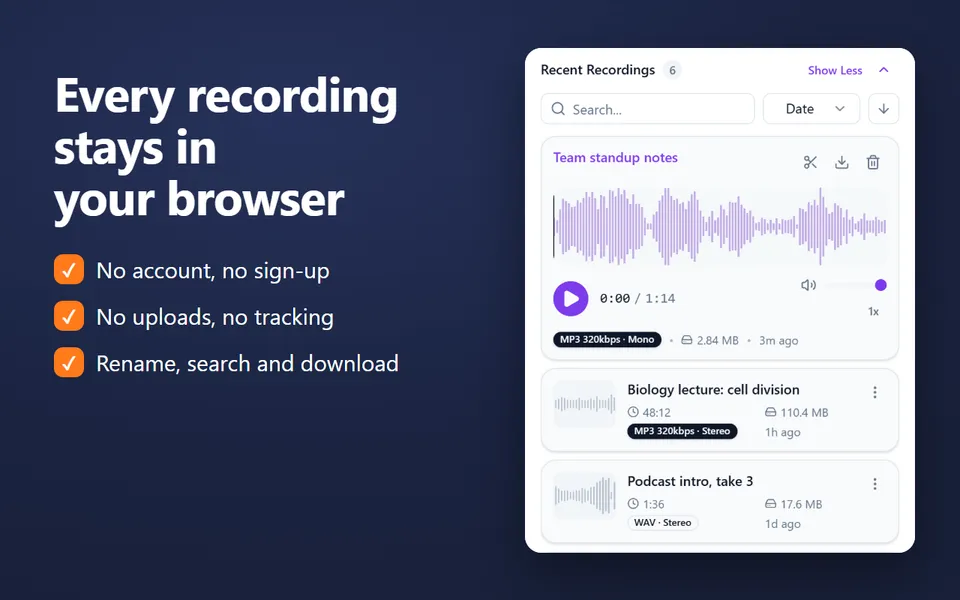
  • A library of your recordings: rename, search, crop, play at 0.5×–2× and download
  • MP3 up to 320 kbps, WAV or WebM, with pause and resume
  • No account. Nothing is uploaded.
Add the extension to Chrome

Free · 40,000 users · rated 4.8 in the Chrome Web Store
For Chrome on Windows, Mac, Linux and Chromebooks.

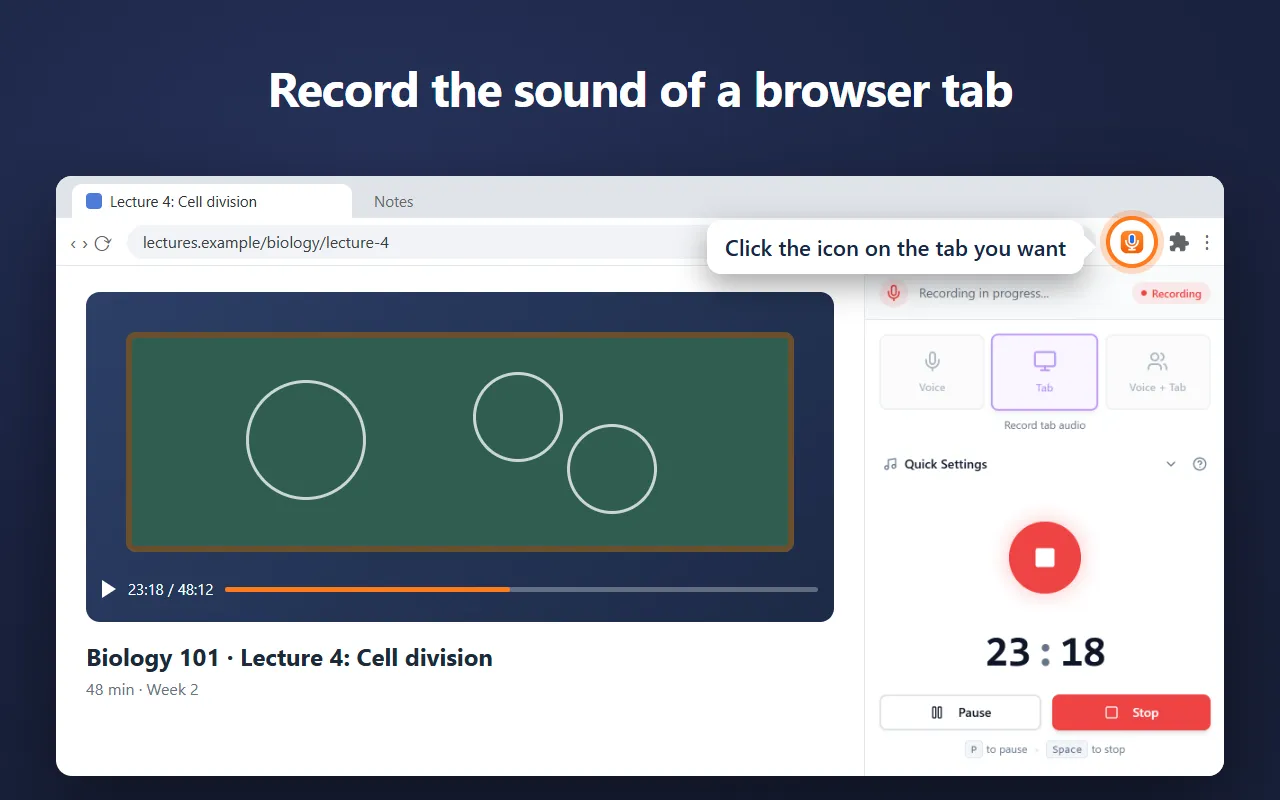
Voice Recorder in Chrome’s side panel, recording the sound of a lecture in a tab

Questions and answers

Why can’t I record in Google Meet?

Meet’s recording is available only with some Google Workspace editions and Google One plans of 2 TB or more, when the meeting’s host is allowed to record. Free Gmail accounts don’t have it.

Do I need to tell people I’m recording?

Yes. Tell everyone before you start, and follow the law where you and they are: many places require everyone’s consent to record a call.

Will my own voice be in the recording?

Only if you turn on Also record my microphone. Meet doesn’t send your own voice back to your tab, so the tab’s sound alone holds the other people.

Does this record video?

No, only the sound. Use Meet’s own recording, or a screen recorder, for video.

More free extensions from our team

Small tools for Chrome that do one job well.