Classroom Noise Meter

Show your class how loud it is. Set a limit, put the meter on the board in full screen, and the number turns amber, then red, when the room gets too loud.

Allow the microphone to start measuring.

–dB

Min
–
Average
–
Max
–

Last 60 seconds

The sound is measured in your browser. Nothing is recorded or uploaded.

Voice Recorder for Chrome: record while you work in other tabs

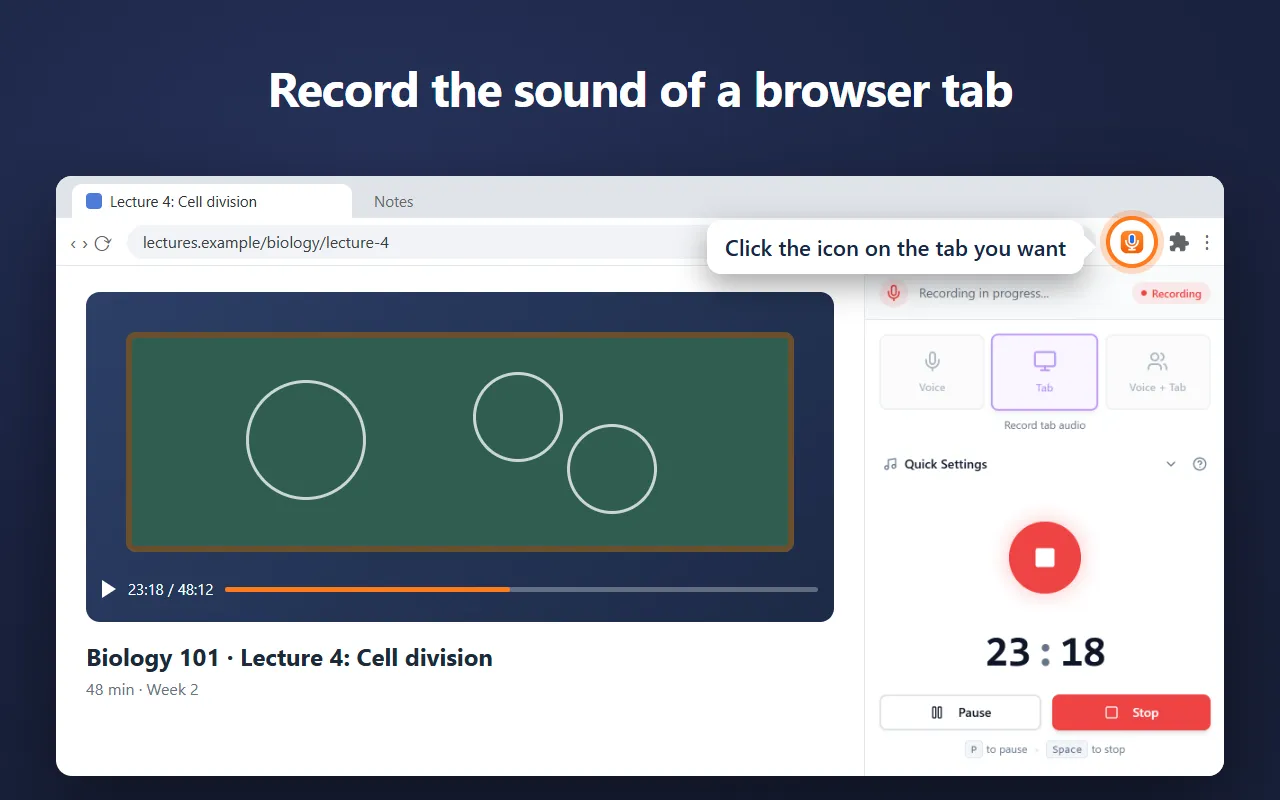
Our free Chrome extension records in Chrome’s side panel, so it keeps going while you work in other tabs. It saves as it records, so a crash or a closed browser loses only the last few seconds.

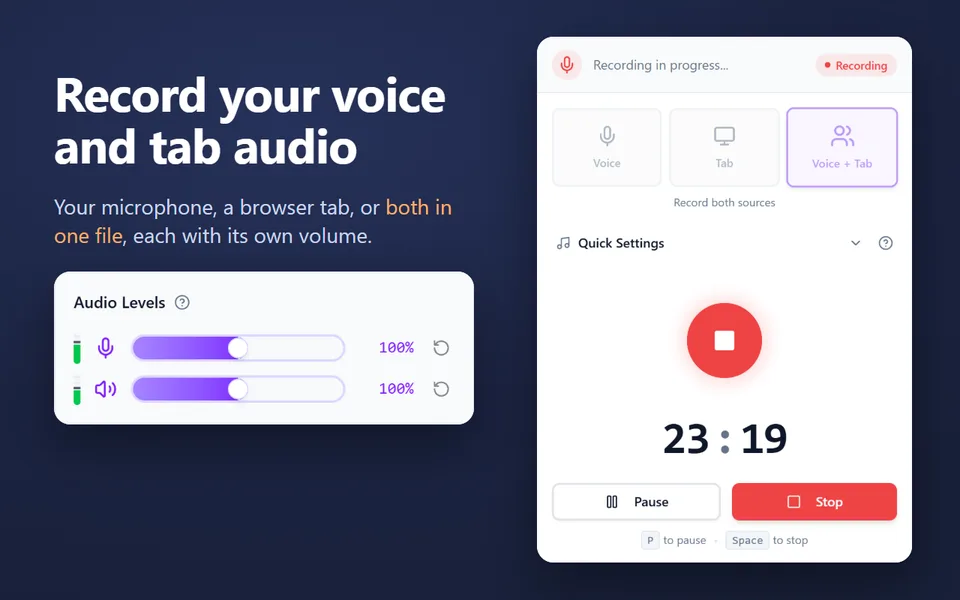
  • Records your microphone, the sound of a browser tab, or both in one file
  • Records your computer’s sound on Windows and macOS 14.2 or later
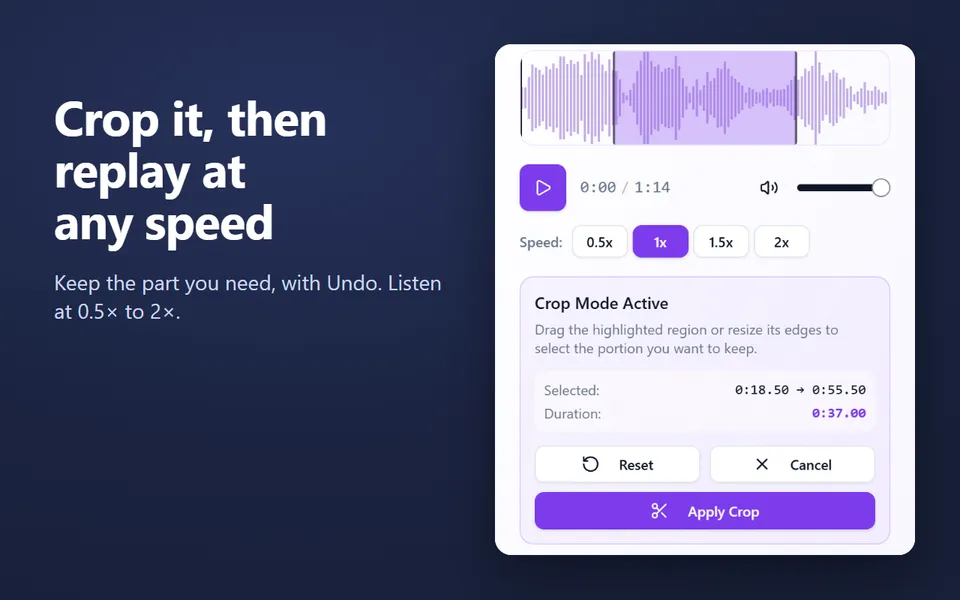
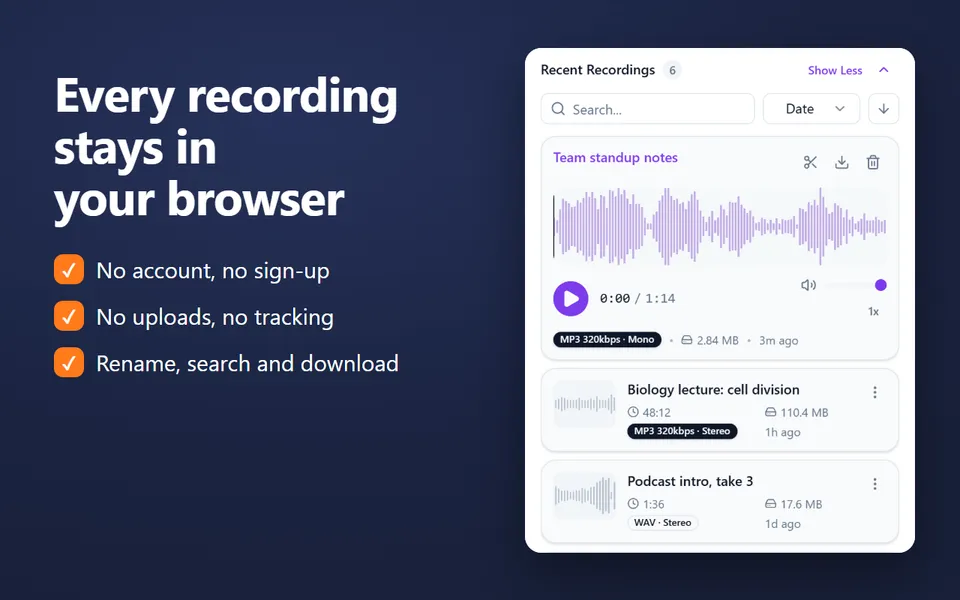
  • A library of your recordings: rename, search, crop, play at 0.5×–2× and download
  • MP3 up to 320 kbps, WAV or WebM, with pause and resume
  • No account. Nothing is uploaded.
Add the extension to Chrome

Free · 40,000 users · rated 4.8 in the Chrome Web Store
For Chrome on Windows, Mac, Linux and Chromebooks.

Voice Recorder in Chrome’s side panel, recording the sound of a lecture in a tab

How to use it in class

  1. Open this page on the computer connected to your board or projector.
  2. Click Start measuring and allow the microphone.
  3. Set Too loud above to the limit you want. The red line on the graph shows it.
  4. Click the screen button for Full screen. Press Esc to leave.

The number stays green while the room is under the limit, turns amber within 6 dB of it, and red above it.

Ideas for using a noise meter

Good to know

Readings are estimates from the computer’s microphone, so put it somewhere central, not right next to the loudest table. For a plain decibel reading with min, average and max, use the decibel meter.


Questions and answers

What limit should I set?

Start around 65 dB, watch the room for a few minutes during normal work, then move the limit up or down. Microphones differ, so the right number depends on your room and computer.

Does it work on school Chromebooks?

Yes, in Chrome, if your school allows the microphone for websites. If the microphone is blocked, ask your IT administrator.

Is the class recorded?

No. The page only measures the level, in the browser. No sound is stored or uploaded.

Why does the number differ from another noise meter?

Microphones differ. Use the calibration setting to match a meter you trust; the setting is remembered in this browser.

More free extensions from our team

Small tools for Chrome that do one job well.