The quick way: record in your browser
The recorder above works on any Chromebook, including school ones, with nothing to install.
- Click Start recording and choose Allow when Chrome asks for the microphone.
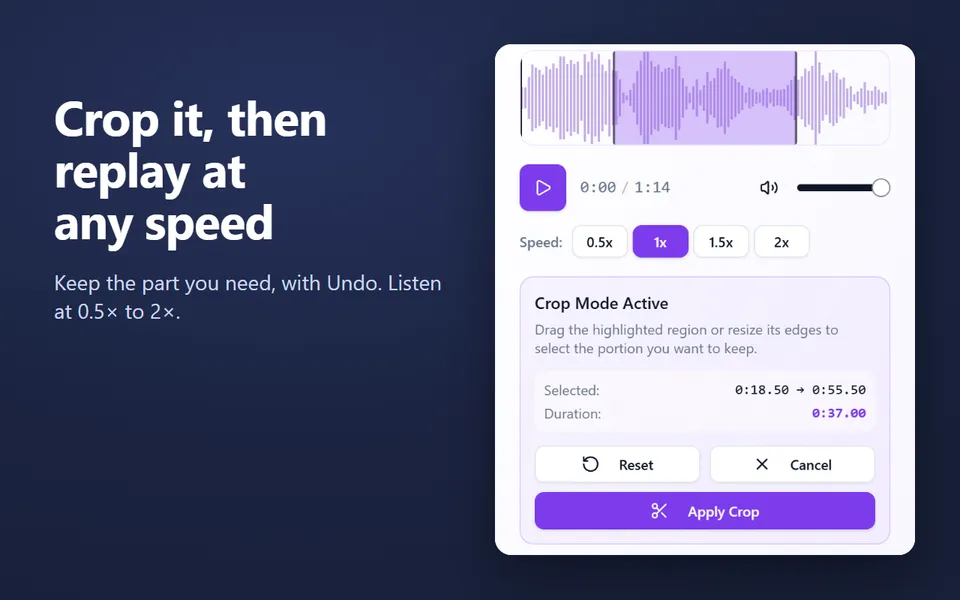
- Speak, then click Stop and save. The recording opens in the recorder, where you can play and crop it.
- Click Download. The MP3 or WAV file goes to your Downloads folder in the Files app.
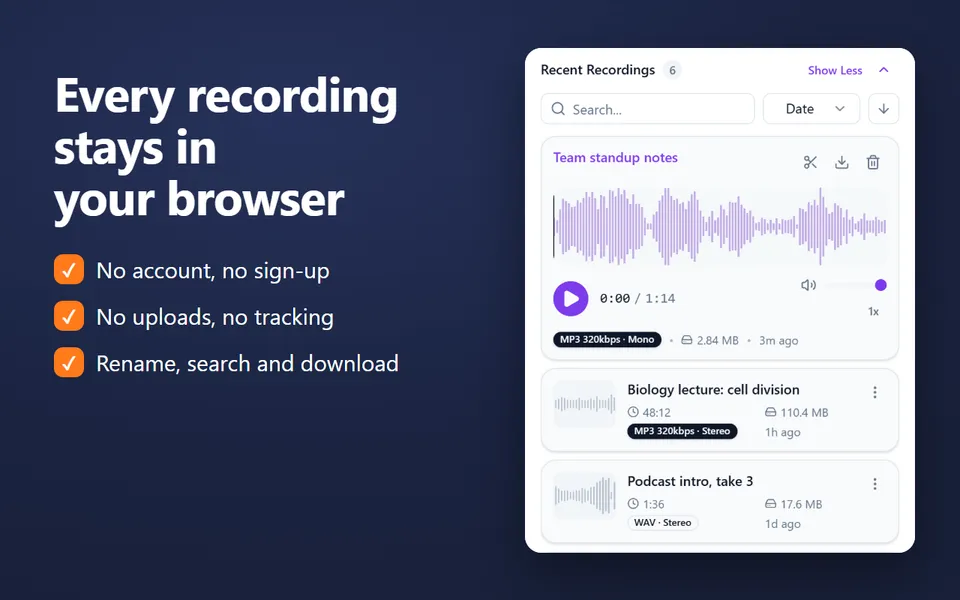
Your recordings stay in Your recordings in this browser until you delete them, so you can come back to them later.
The four ways compared
| Way | Records | Install | Good for |
|---|---|---|---|
| Online recorder (this page) | Your microphone | Nothing | A quick recording, any Chromebook |
| Voice Recorder extension | Your microphone, a tab’s sound, or both | From the Chrome Web Store | Recording while you work in other tabs; keeping a library |
| Recorder app | Microphone or Chromebook audio, with transcription | Built in, Chromebook Plus only | Chromebook Plus owners who want transcripts |
| Screen capture | A video of the screen, with microphone and device audio | Built in | When you need the picture as well |
Record with the Voice Recorder extension
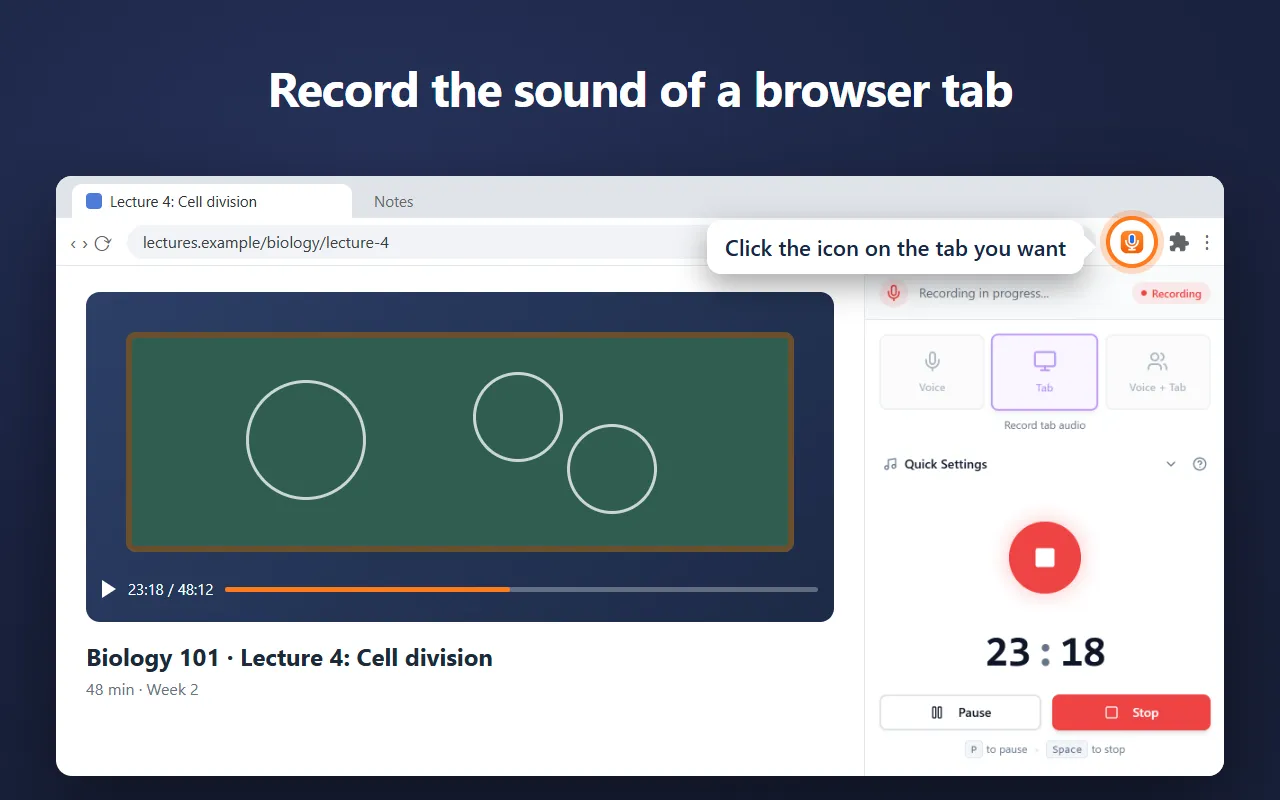
The extension records in Chrome’s side panel, next to the page you’re on, so you can read notes, follow slides or watch a lesson while you record.
- Add Voice Recorder from the Chrome Web Store and pin it to the toolbar.
- Click its icon. The recorder opens in the side panel.
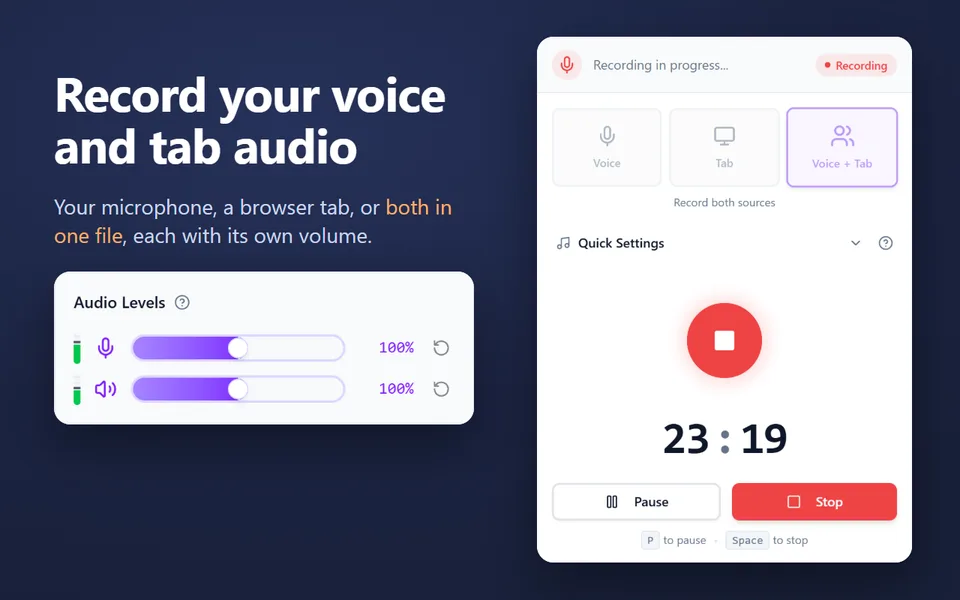
- Choose Voice for your microphone, Tab for the tab’s sound, or Voice + Tab for both.
- Press the record button. Recording continues if you close the side panel or switch tabs.
- When you stop, name the recording and click Save Recording to download it. It also stays in the history.
Use the Recorder app (Chromebook Plus)
Google’s Recorder app comes with Chromebook Plus models. Open the Launcher, then Recorder. It records the microphone or the Chromebook’s own sound, and can write a transcript as you record. Other Chromebooks don’t have it.
Record the screen with sound
To record a video with audio, press Shift + Ctrl + Show windows, select Screen record, and in Settings (the gear) choose Microphone, Device audio, or both. Stop with Search + Shift + X. The video goes to Downloads. This makes a video file, not an audio file.
If the microphone doesn’t work
- Click the icon to the left of the address bar and allow the microphone for the site.
- Check the microphone switch in the Chromebook’s settings, under Security and privacy.
- On a school Chromebook, your administrator decides which sites and extensions may use the microphone.
- Test it with the mic test: it shows whether any sound arrives.
Updated October 15, 2026